You've been running your placement cell on Excel for years. It works — sort of. But you know the pain: broken formulas, version conflicts, WhatsApp file sharing, manual reports.
This guide walks you through migrating to a digital placement system without losing any data or disrupting your current process.
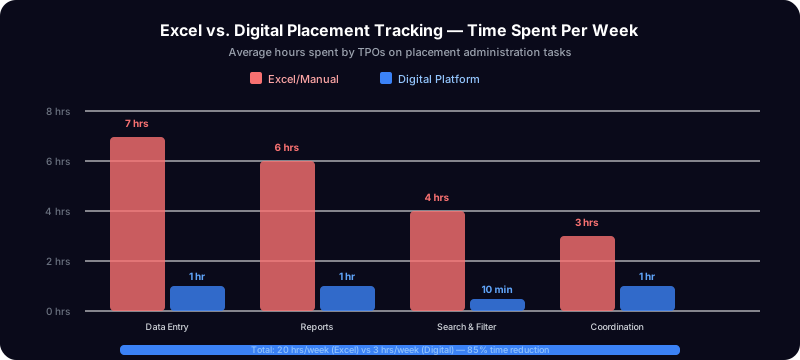
Before You Start
What You'll Need
- Your current Excel/CSV file with candidate data
- 30 minutes of uninterrupted time
- A laptop with internet access
What You Won't Need
- IT department approval
- Technical skills
- Budget (we're using free tools)
Step 1: Clean Your Data (10 minutes)
Open your Excel file and make sure it has these columns (the names don't need to match exactly):
| Required | Optional |
|---|---|
| Name | Phone |
| Department | |
| Batch/Year | |
| Institution |
Quick cleanup checklist:
- Remove completely empty rows
- Check for duplicate emails
- Make sure names aren't cut off
Save as CSV if your file is in XLSX format with multiple sheets — CSV is simpler for import.
Step 2: Create Your Account (2 minutes)
- Go to placementpilot.ai/signup
- Enter your name, email, and password
- Create your organization — enter your institution name
- Add departments (e.g., CSE, ECE, Mechanical)
- Create a batch (e.g., "2027 Batch" or "Placement Season 2026")
You're now on the dashboard. It's empty — let's fill it.
Step 3: Import Your Candidates (5 minutes)
- Click Candidates in the sidebar
- Click Import at the top
- Upload your CSV/Excel file
- The system will detect your columns automatically
- Map them: tell the system which column is "Name", which is "Email", etc.
- Click Import
That's it. Your candidates are now in the system with proper profiles.
Step 4: Run Your First Assessment (15 minutes)
Pick 5 candidates and score them:
- Go to Assessments → New Assessment
- Select a candidate
- Choose assessment type: Mock Interview, Group Discussion, or Presentation
- Score them 1-10 with notes
- Repeat for 4 more candidates
Now check your Dashboard. You'll see:
- Readiness percentage (probably low with just 5 assessments — that's fine)
- Candidate funnel showing assessment status
- Department breakdown
This is the "aha moment" — real-time data from actual assessments, without writing a single formula.
Step 5: Onboard Your Staff (5 minutes)
Go to Users → Invite and add your fellow placement staff:
- Enter their email
- Choose role: Staff (can assess, manage candidates) or Admin (full access)
- They'll get an email invitation
Now multiple people can enter assessments simultaneously without version conflicts.
What Changes Immediately
| Before (Excel) | After (PlacementPilot) |
|---|---|
| Share file on WhatsApp | Everyone sees same live data |
| Manual readiness calculation | Automatic readiness % |
| "Let me check the sheet" | Instant dashboard view |
| No assessment history | Full timeline per candidate |
| Dean asks, you scramble | Dean gets a dashboard link |
What Stays the Same
- Your assessment criteria don't change
- Your workflow with students doesn't change
- Your placement process doesn't change
- You're just digitizing the tracking
Common Concerns
"What about my old data?"
Your Excel data is imported as-is. Nothing is lost. You can export from PlacementPilot back to CSV anytime.
"What if the internet goes down?"
PlacementPilot is web-based. If internet is down, you can't access it — same as Google Sheets. For offline needs, keep your Excel as a backup for the first month while you transition.
"My staff isn't tech-savvy"
If they can use WhatsApp, they can use PlacementPilot. The interface is simpler than Excel. No formulas, no cell references, no sheet tabs.
"What about data privacy?"
Your data is stored in secure cloud servers with encryption. Each organization's data is isolated — no one else can see your candidates. We're DPDPA 2023 compliant.
"What happens after 100 candidates?"
The free tier supports 100 candidates. If you have more, upgrade to a paid plan starting at ₹2,999/month. Or keep using it for your top 100 priority candidates.
The 30-Day Migration Plan
Week 1: Import data, run 20 assessments, get familiar with dashboard Week 2: Invite staff, start using for daily assessments, stop updating Excel Week 3: Run a department comparison report for the Dean Week 4: You'll never open that Excel file again
Related: Best Placement Management Software India | 5 Signs Your Placement Cell Needs Upgrade | All features →
Ready to start? Sign up free at PlacementPilot AI — import your Excel in 5 minutes.